
Going further
Update Kurato
An update keeps your content and your settings. Your pages, projects, menus, widgets, and Customizer settings are stored in the database, not in the theme folder.
Make a backup of your files and your database. Most hosts have a backup button. If you changed theme files directly, those changes are lost in an update. Use the child theme for code changes.
Do I have the newest version?#
Go to Kurato > Help. The Updates box shows the version you have and whether WordPress knows of a newer one. WordPress learns about new versions through the Envato Market plugin. The newest version is always in your ThemeForest Downloads, and the changes are listed in the changelog.
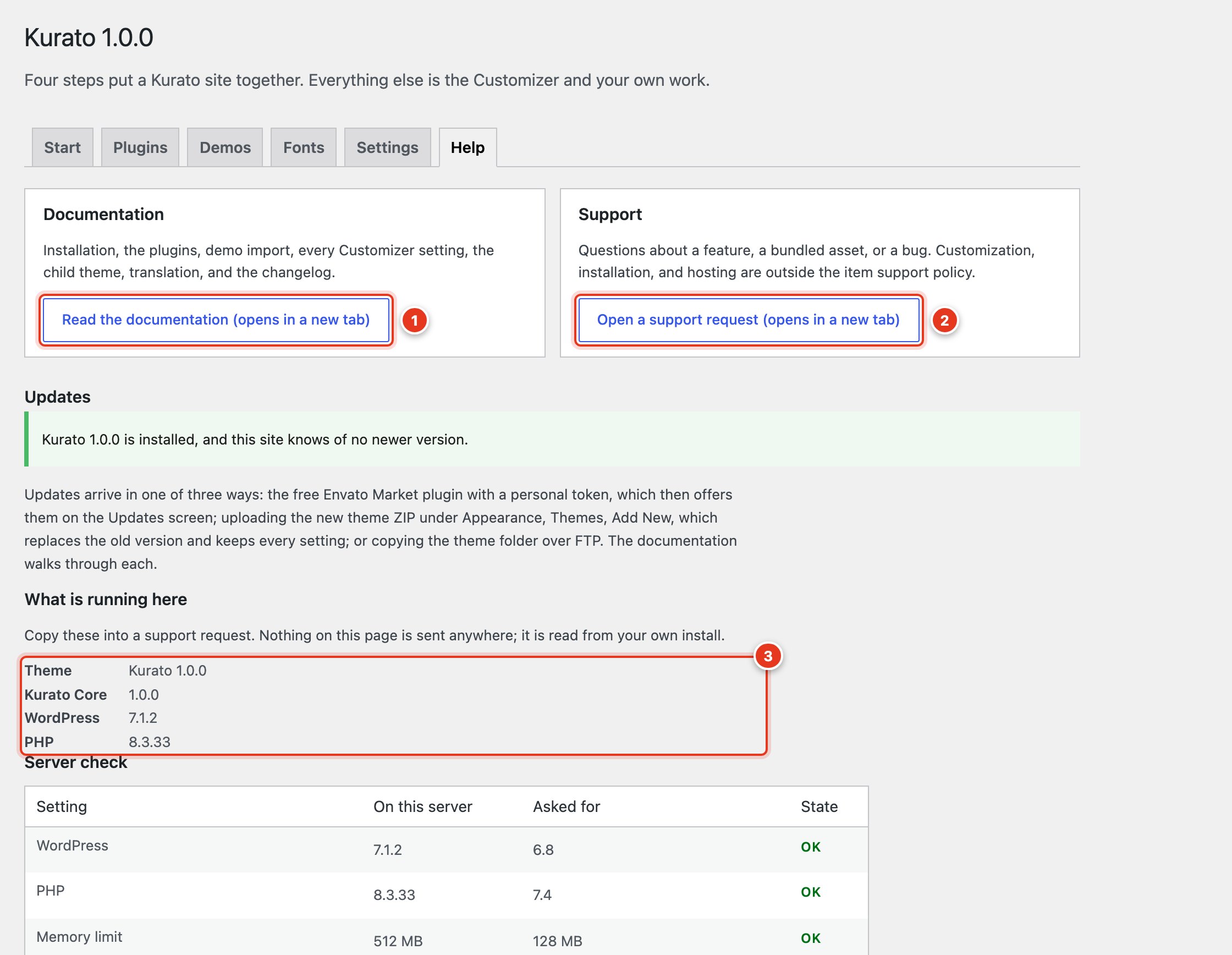
- Opens this documentation.
- Opens a support request. See Support.
- The versions in use on your site. Copy them into a support request.
Way 1: the Envato Market plugin#
Envato's free plugin shows Kurato updates on the Dashboard > Updates screen, like updates from the WordPress directory.
- Download the Envato Market plugin from envato.com/market-plugin and install it under Plugins > Add New Plugin > Upload Plugin.
- Go to Envato Market in the admin menu and click the link to generate a personal token. Log in with your Envato account.
- Give the token the permissions the page asks for, create it, and copy it.
- Paste the token in the Envato Market screen and save. Kurato appears under Themes.
- When an update is out, update Kurato from Dashboard > Updates.
Way 2: upload the new zip#
- Download the newest package from your ThemeForest Downloads and unzip it.
- Go to Appearance > Themes > Add Theme > Upload Theme and upload the new
kurato.zip. - WordPress says the theme is already installed and compares the versions. Click Replace active with uploaded.
Way 3: FTP#
- Unzip the new
kurato.zipon your computer. - With your FTP program, open
wp-content/themes/and rename the oldkuratofolder tokurato-old. - Upload the new
kuratofolder. - Check your site. When all is well, delete
kurato-old.
Update Kurato Core#
A new Kurato Core comes inside the new theme. After you update the theme, a notice says that Kurato Core has an update. Click Begin updating plugin, or go to Appearance > Install Plugins, select Kurato Core, and choose Update. Elementor, WooCommerce, and the other optional plugins update from the WordPress directory as usual.
Your purchase code#
Kurato does not ask for a purchase code. Every feature works without one. You need the code only for support. Find it on ThemeForest: open Downloads, click Download next to Kurato, and choose License certificate & purchase code.
Kurato 1.0.0 documentation, updated 2026-10-03. Online at kurato.jawad.work/docs/.