
Getting started
Install the plugins
Kurato needs one plugin, Kurato Core. Four more are optional. The theme installs all of them for you from one screen.
Why Kurato Core is a plugin#
Kurato Core holds your projects, the 70 sections, the widgets, the demo import, and the shop extras. It is a plugin so that your content stays when you change themes. The theme carries a copy of it, so you do not download anything.
Install the plugins#
After you activate Kurato, a notice appears at the top of the admin screens.

- The required plugin: Kurato Core.
- The recommended plugins. Each name opens its details.
- Click Begin installing plugins.
If you closed the notice, go to Appearance > Install Plugins.
- Tick the box at the top of the list to select all plugins. Untick any optional plugin you do not want.
- In Bulk actions, choose Install.
- Click Apply and wait. Installing five plugins takes about a minute.
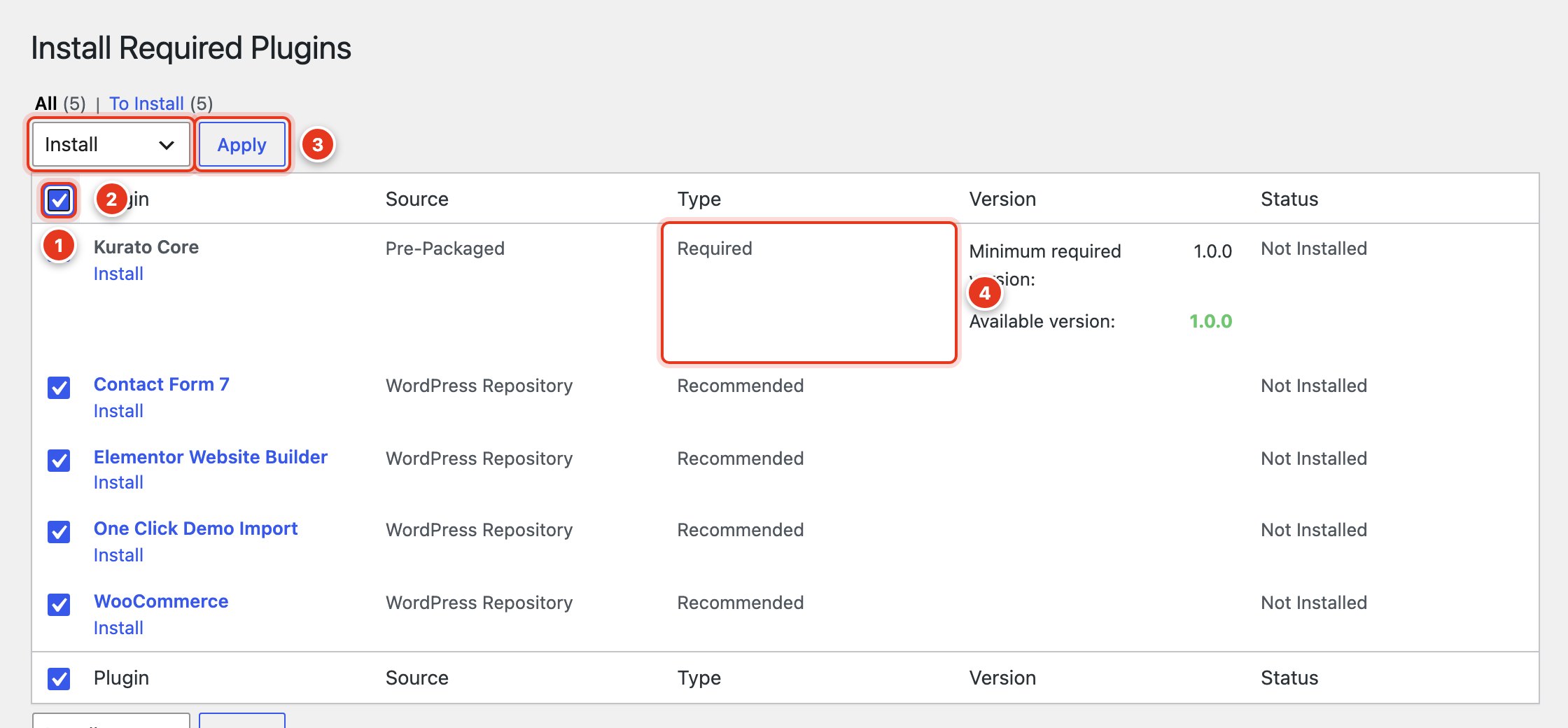
- Select all plugins.
- Choose Install.
- Click Apply.
- Kurato Core is Required. The others are Recommended.
Each plugin reports "installed successfully". Then click Return to Required Plugins Installer.
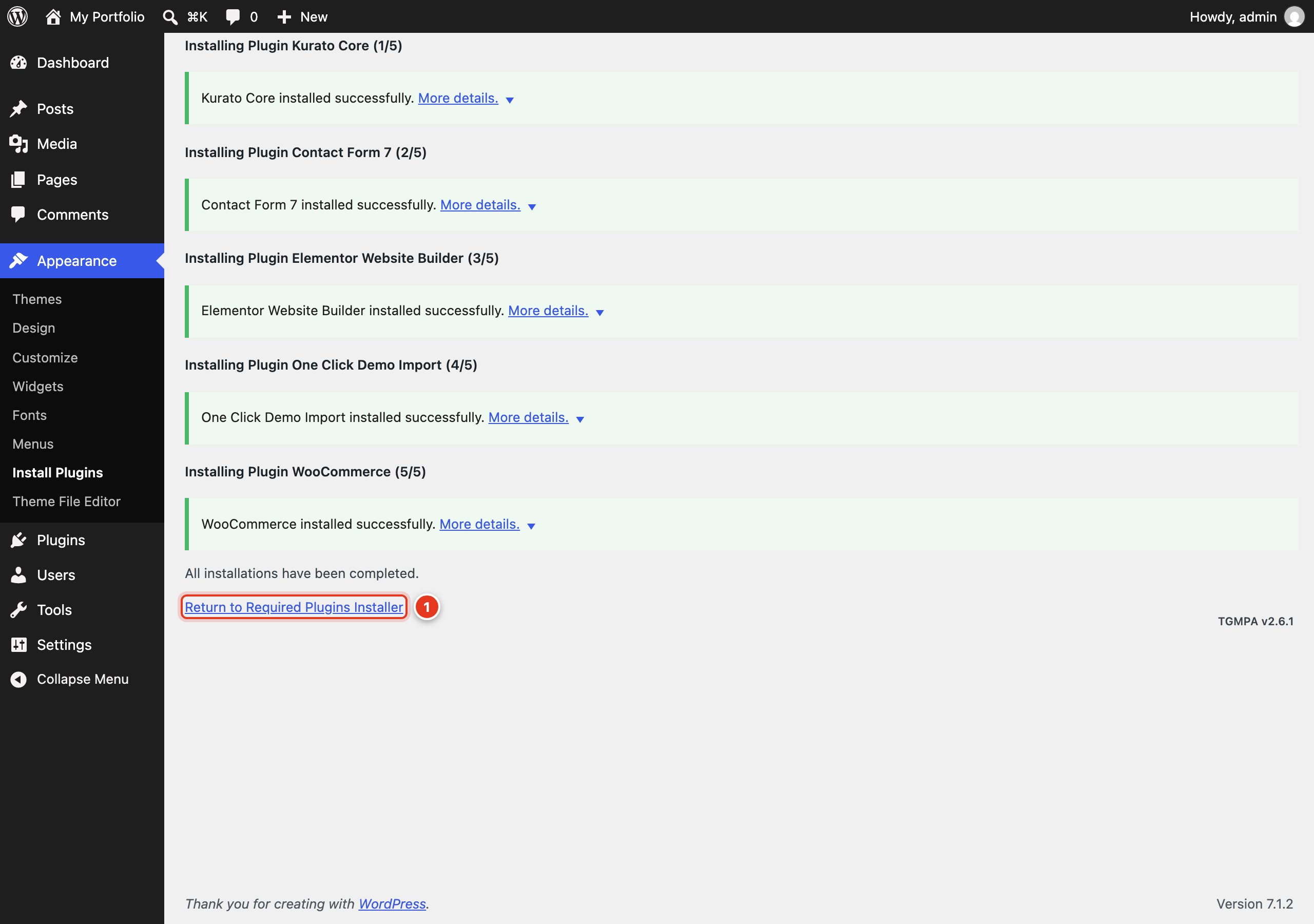
- Go back to the plugin list to activate them.
Activate the plugins#
- Select all plugins again.
- In Bulk actions, choose Activate.
- Click Apply.
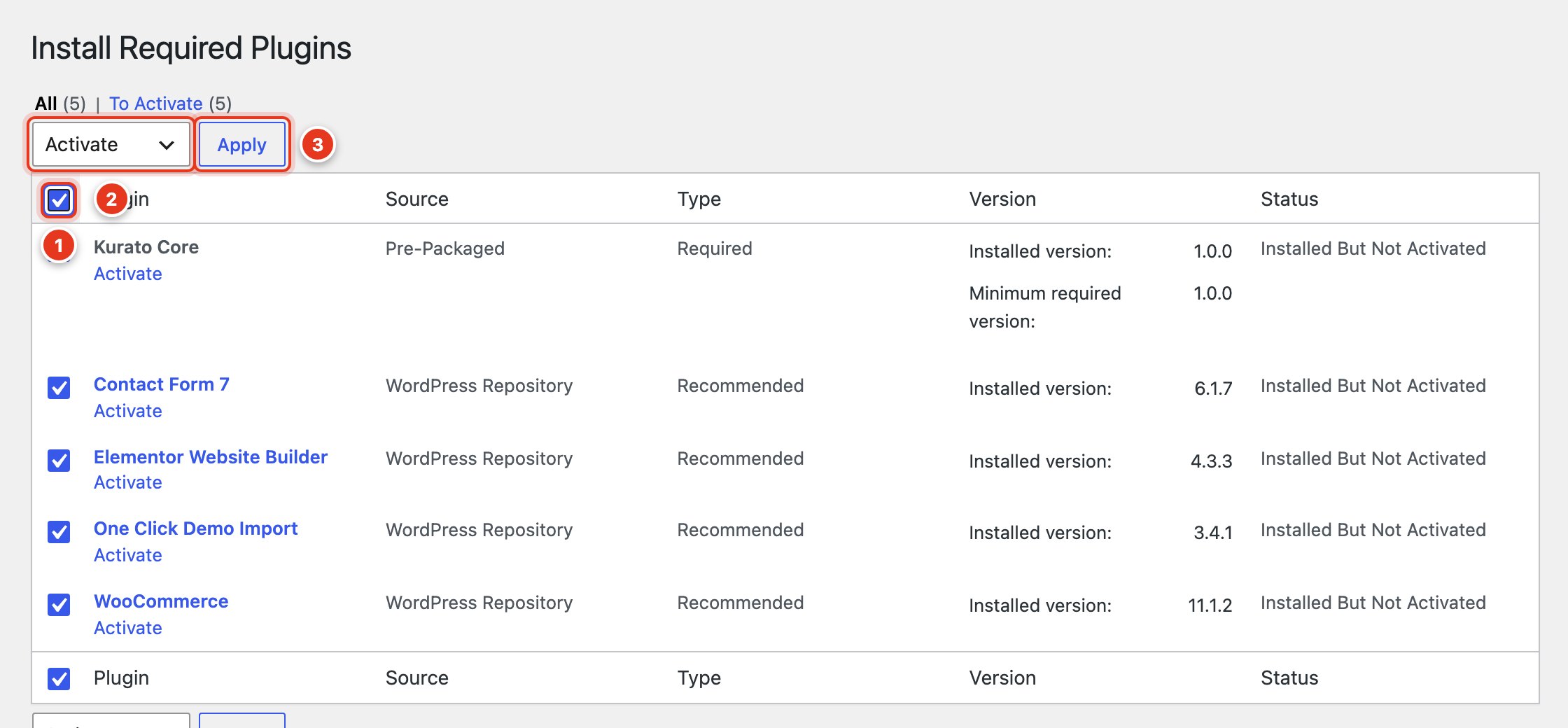
- Select all plugins.
- Choose Activate.
- Click Apply.
Elementor and WooCommerce may open their own welcome or setup screens the first time you visit the admin. You can skip them. The demo import sets the parts Kurato needs.
Which optional plugins do you need?#
| Plugin | Install it if | Without it |
|---|---|---|
| Elementor | You want to import a demo, or you like to build pages by dragging. | Build pages with the WordPress block editor. Every section is also a block. |
| Contact Form 7 | You want a contact form. | The Contact form section has nothing to show. |
| WooCommerce | You want to sell prints, presets, or other products. | The cart button and the shop pages are not shown. |
| One Click Demo Import | You want to import a demo. | You can delete it after the import. |
The demo pages are built with Elementor. If you import a demo without Elementor, those pages arrive empty.
The Kurato screen#
When Kurato Core is active, a Kurato item appears in the admin menu. A notice also points to it once.

- Open the Kurato page takes you to the screen below. Dismiss hides the notice for good.
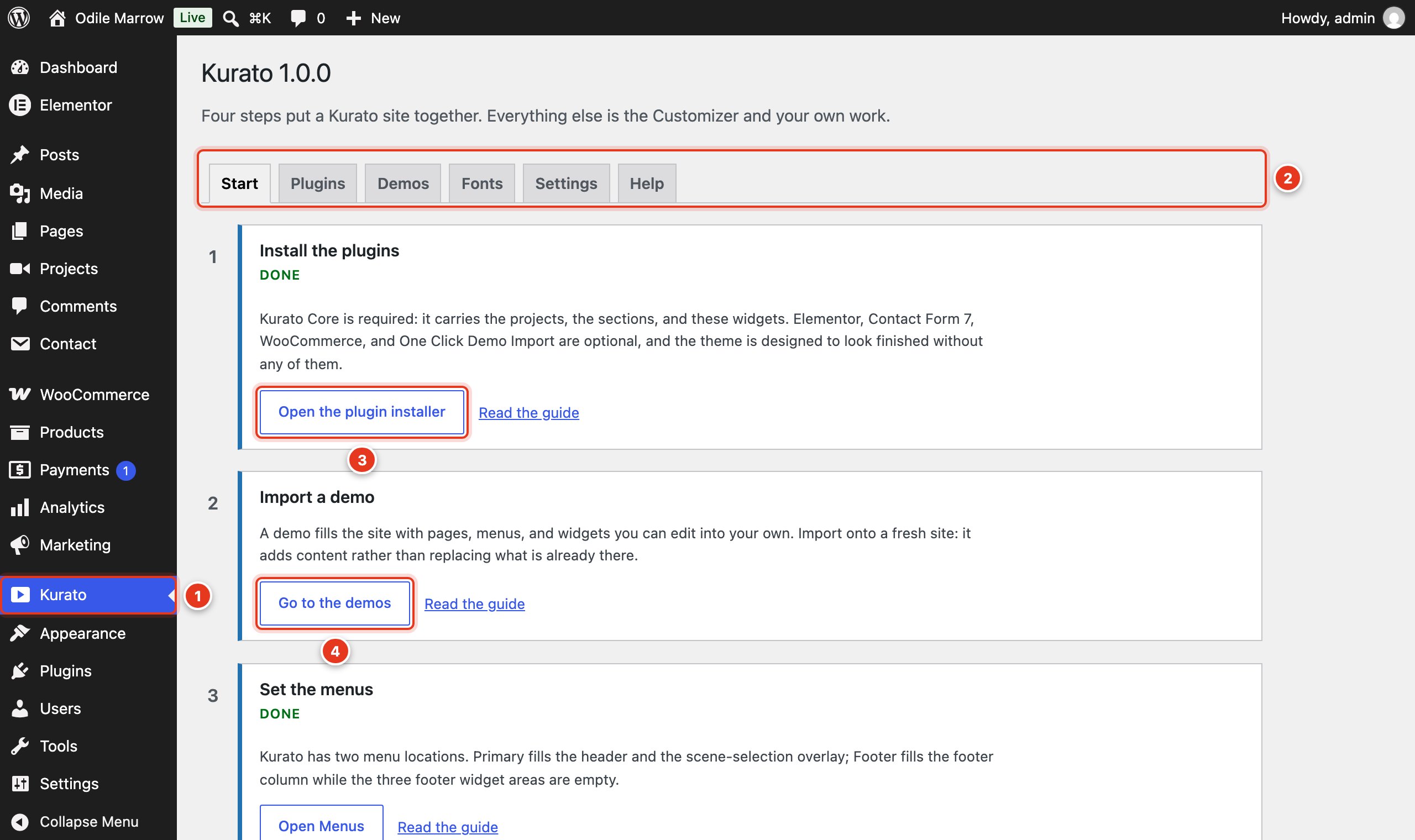
- The Kurato menu item.
- The tabs: Start, Plugins, Demos, Fonts, Settings, and Help.
- Step 1 shows Done when Kurato Core is active.
- Step 2 takes you to the demos. Continue with Import a demo.
The four steps on the Start tab are the same steps as this documentation: install the plugins, import a demo, set the menus, and open the Customizer. Each step has a Read the guide link to its page here, and the Plugins, Demos, Fonts, and Settings tabs link to theirs. The Plugins tab shows which plugins are active and installs the missing ones.
Kurato 1.0.0 documentation, updated 2026-10-03. Online at kurato.jawad.work/docs/.