
Building your site
Site basics
These are the first things to change after an import, or the first things to set on an empty site.
Logo and site icon#
Go to Appearance > Customize > Site Identity.
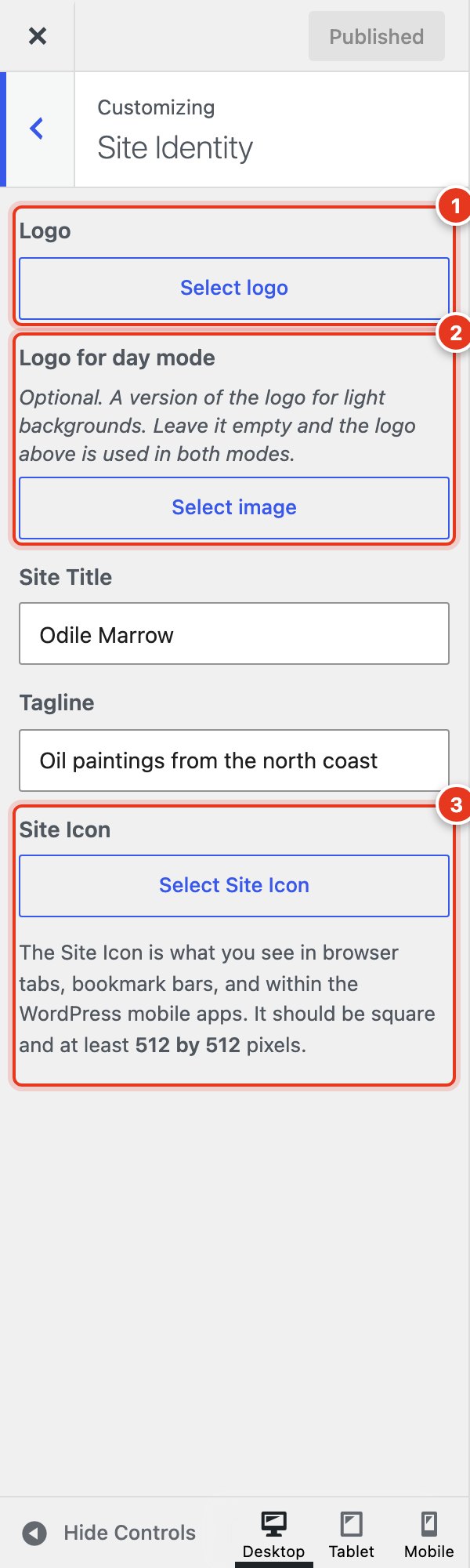
- Logo: your logo, shown in the header. A light logo works best, because Kurato opens in night mode by default. Without a logo, the header shows the site title.
- Logo for day mode: optional. A dark version of your logo for the light day mode. Leave it empty to use the same logo in both modes.
- Site Icon: the small image in browser tabs and on phone home screens. Use a square image of at least 512 by 512 pixels.
The header shows the logo 20 pixels high, so a wide logo works best. Upload it at least 60 pixels high, so it stays sharp on high-resolution screens. Use a PNG with a transparent background. WordPress does not accept SVG files without an extra plugin.
Front page and journal#
Go to Settings > Reading. Choose A static page, then pick your Homepage and your Posts page. After a demo import these are already set. See Pick your home page to switch to one of the other ten home pages.
Menus#
Kurato has two menu locations:
- Primary fills the header and the full-screen menu.
- Footer fills the footer, but only while all three footer widget areas are empty.
Go to Appearance > Menus > Manage Locations and choose a menu for each location.
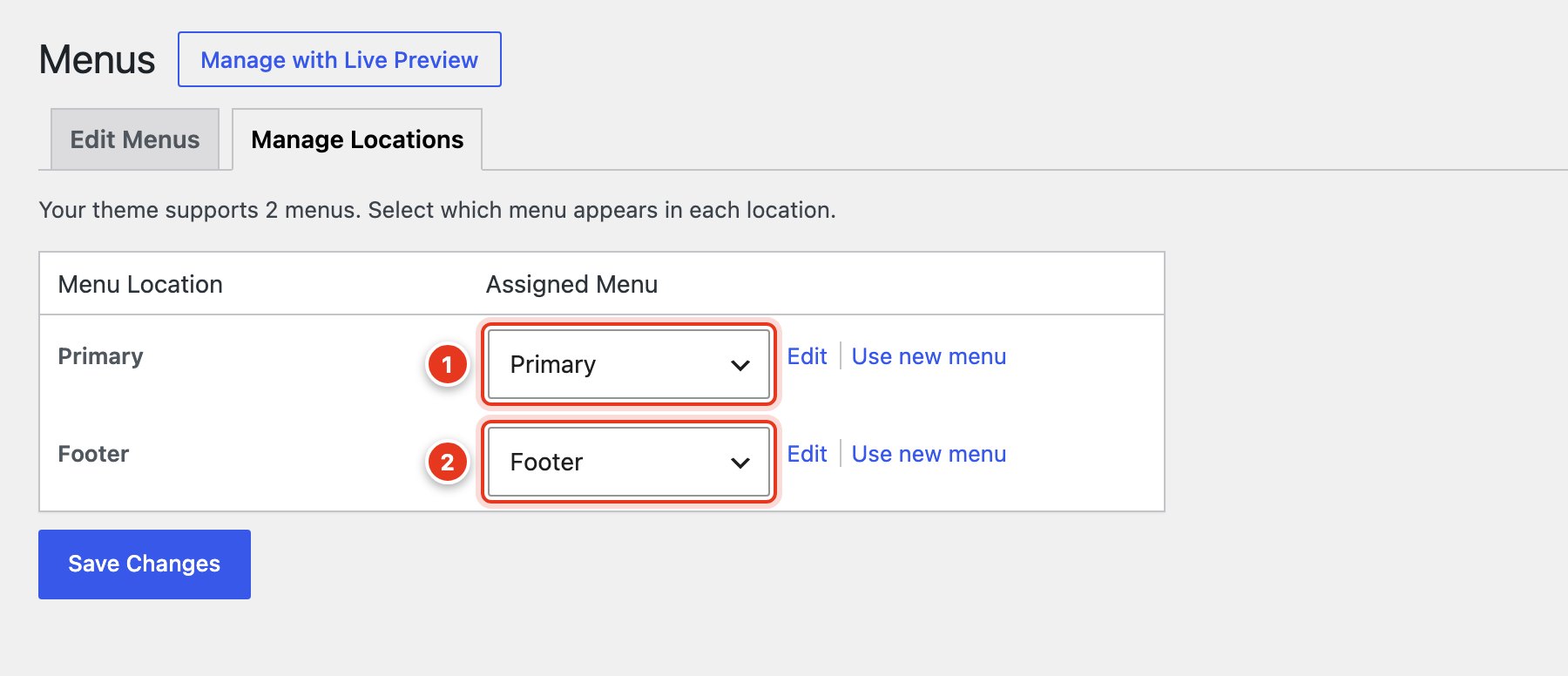
- The menu for the header and the full-screen menu.
- The menu for the footer.
Notes and stills for menu items#
The full-screen menu can show a short note under each item and an image, the "monitor", beside the list. Both are set on the Edit Menus tab.
- To see the Description field, open Screen Options at the top right and tick Description.
- Click the arrow on a menu item to open it.
- Write the note in Description.
- Under Monitor still, click Choose image. This field is only on top-level items.
- Click Save Menu.
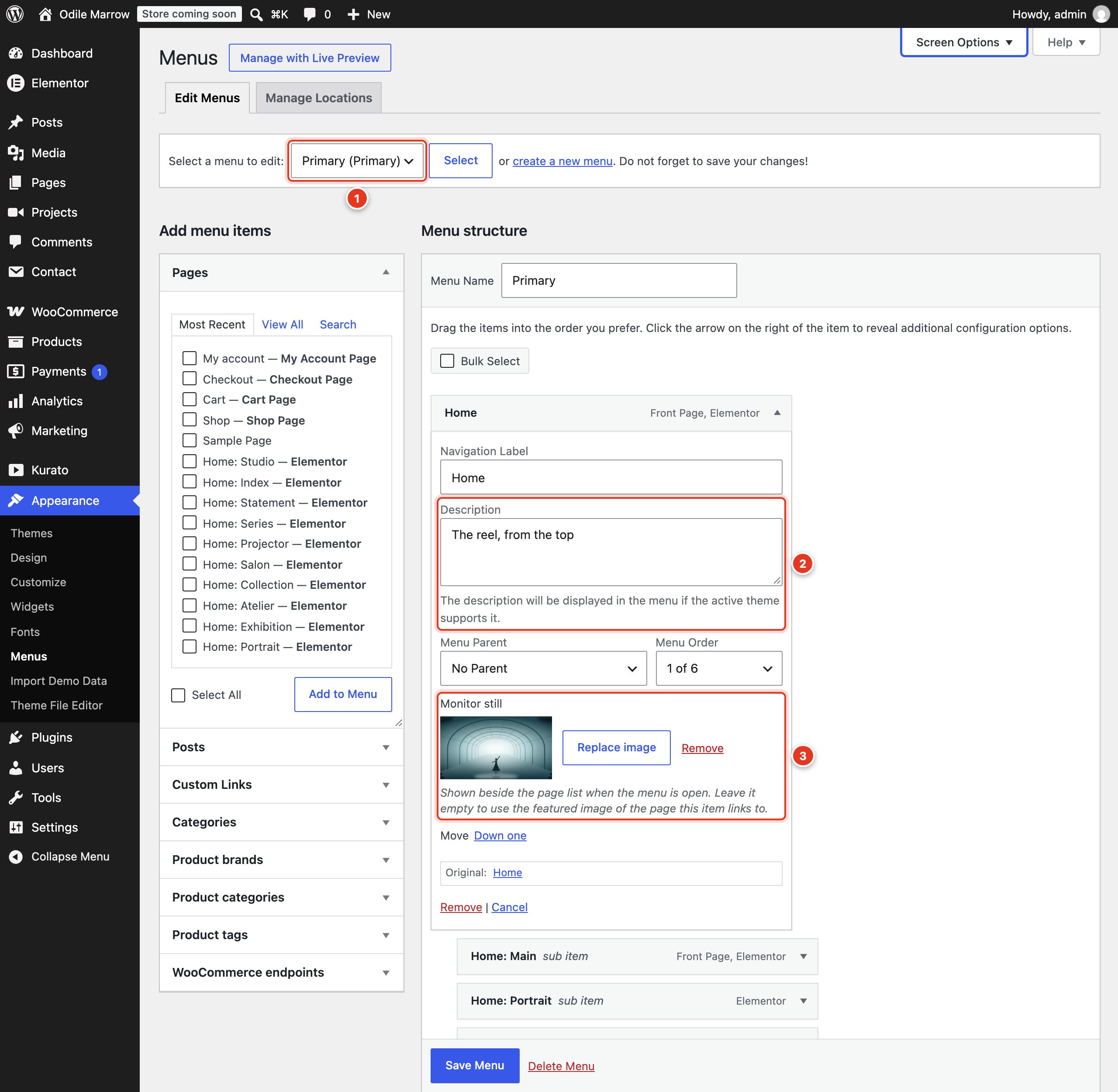
- Choose the menu to edit.
- Description: the note under the item in the full-screen menu.
- Monitor still: the image shown beside the list when this item is active. Leave it empty to use the featured image of the page the item links to.
Items under another item become a numbered list that opens from the parent item, like takes of one scene: 02A, 02B, and so on. The menu style, the monitor, and a fallback image are in the Customizer. See Header.
Widgets#
Go to Appearance > Widgets. Kurato has five widget areas:
| Area | Where it shows |
|---|---|
| Blog sidebar | Beside posts and the journal, when the Customizer turns the blog sidebar on. See Blog settings. |
| Shop sidebar | On the shop and product category pages: as a column, or as a filter panel that slides in. |
| Footer 1, 2, and 3 | The three footer columns. While all three are empty, the Footer menu is shown instead. |
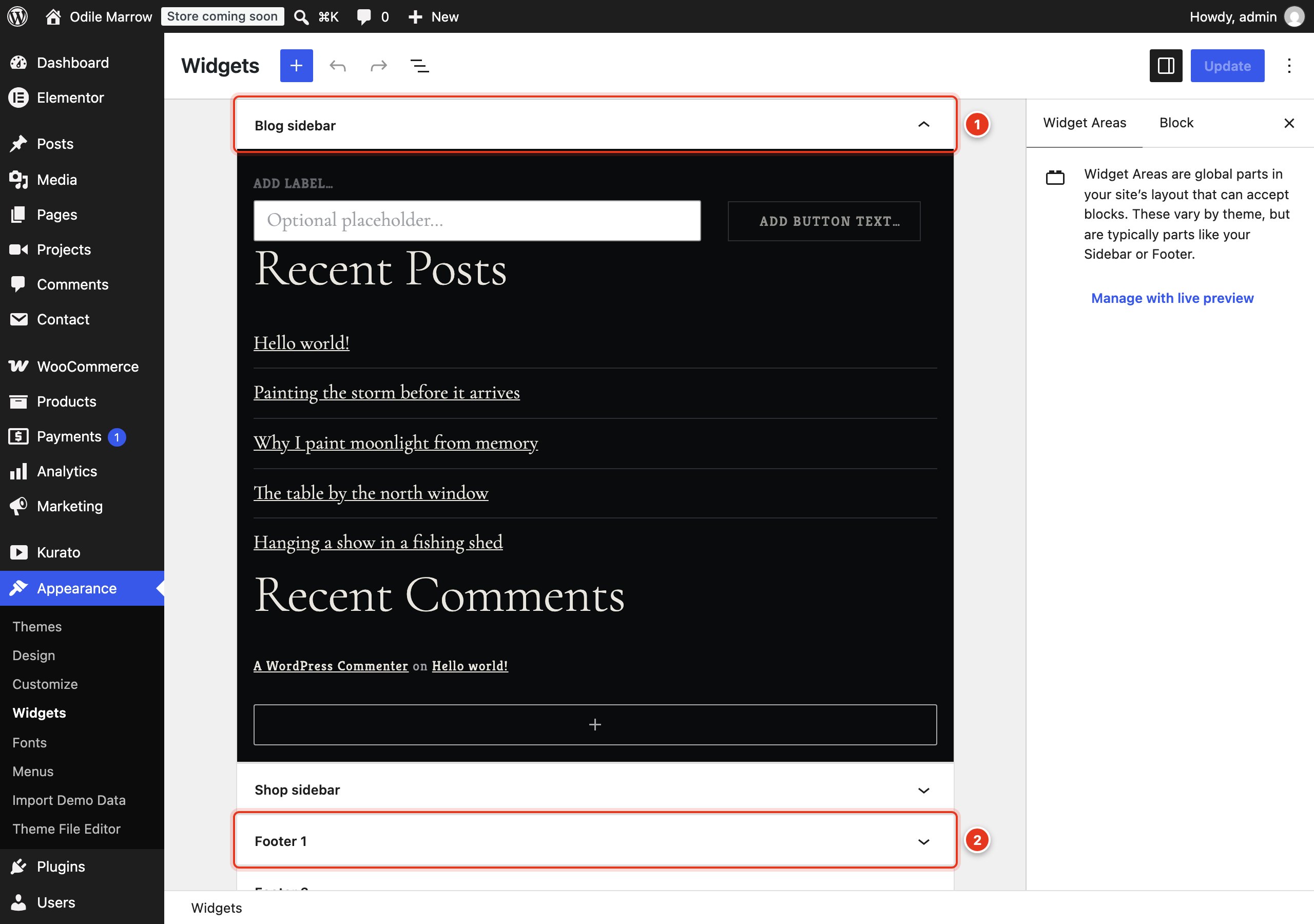
- Click an area to open it, then click the plus button to add a block.
- The footer columns.
Kurato Core adds three widgets. You find them in the block list under "Widgets":
- Kurato: Projects: a list of projects, from one type, client, year, or role, with a still and a meta line.
- Kurato: About card: a portrait, a heading, a short text, and one link. For the image, enter the image's ID number. You find it at the end of the address when you open the image in Media.
- Kurato: Social links: your profiles from the Customizer, or a row of your own.
Permalinks#
Go to Settings > Permalinks and choose Post name. The demo import sets this for you if your site still uses the default. Addresses like /about/ are easier to read and share than /?page_id=12.
The address of your project archive (for example /work/) is set in a different place: Kurato > Settings. See The archive address.
Open your shop#
A new WooCommerce store starts in "Coming soon" mode: visitors who are not logged in see a "coming soon" page instead of your shop. When your shop is ready:
- Go to WooCommerce > Settings > Site visibility.
- Choose Live.
- Click Save changes.
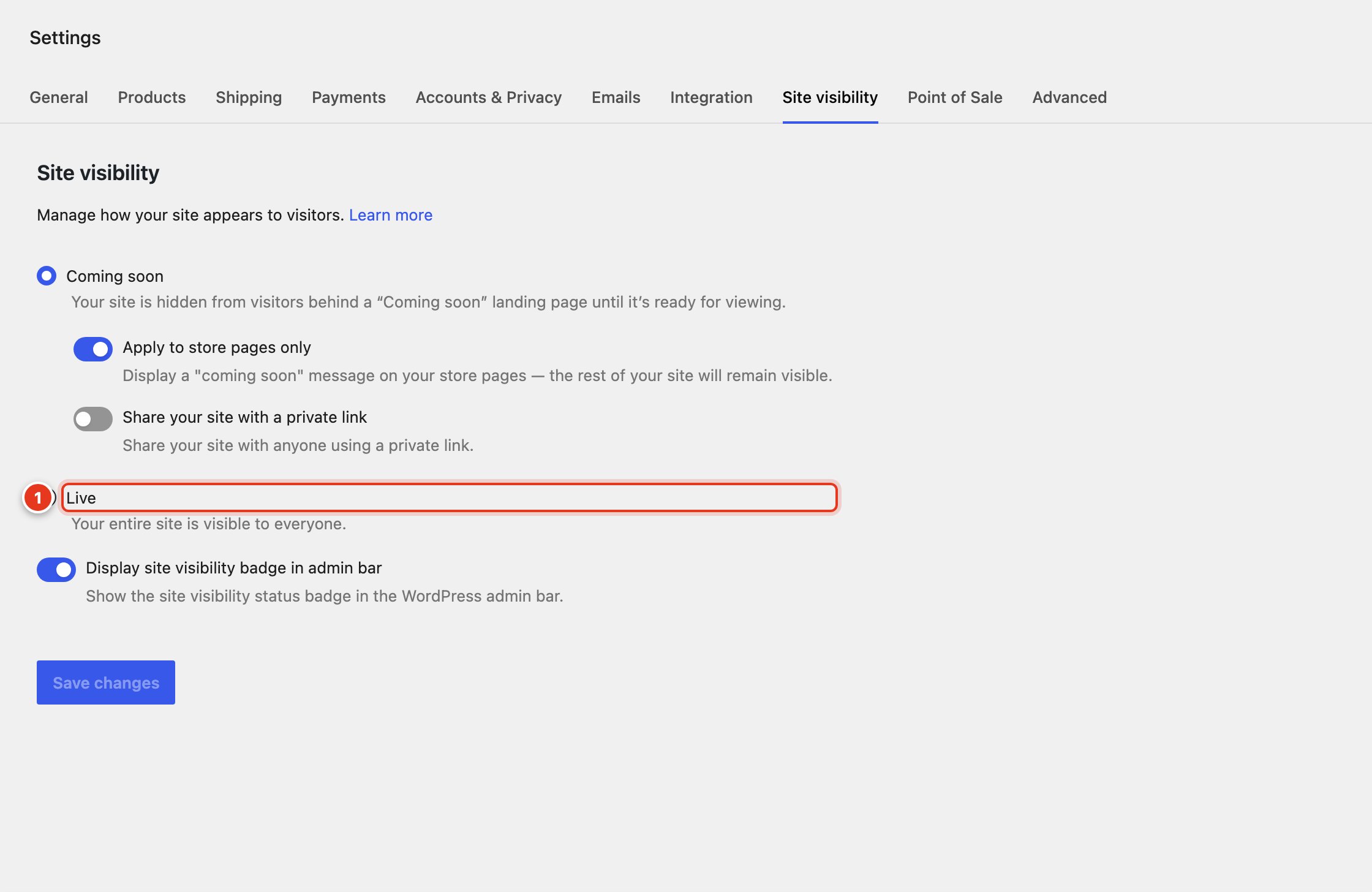
- Choose Live when the shop is ready.
Kurato 1.0.0 documentation, updated 2026-10-03. Online at kurato.jawad.work/docs/.