
Getting started
Import a demo
A demo fills your site with pages, projects, posts, products, menus, widgets, and Customizer settings. Then you replace the demo content with your own.
The import adds content. It does not delete anything. On a site that already has content, you get both, mixed together. It also replaces some settings: the site title and tagline, the front page and posts page, the menu locations, the Customizer settings, and the permalinks if they are still the default.
Before you import#
- Kurato is active, and Kurato Core is active. See Install the plugins.
- Elementor, WooCommerce, Contact Form 7, and One Click Demo Import are active. The demo pages are built with Elementor, and each demo has a shop and a contact form.
- If you use the child theme, activate it now, before the import.
Check your server#
Go to Kurato > Demos and scroll down to Is this server ready for an import? The table compares your server with what the import needs.
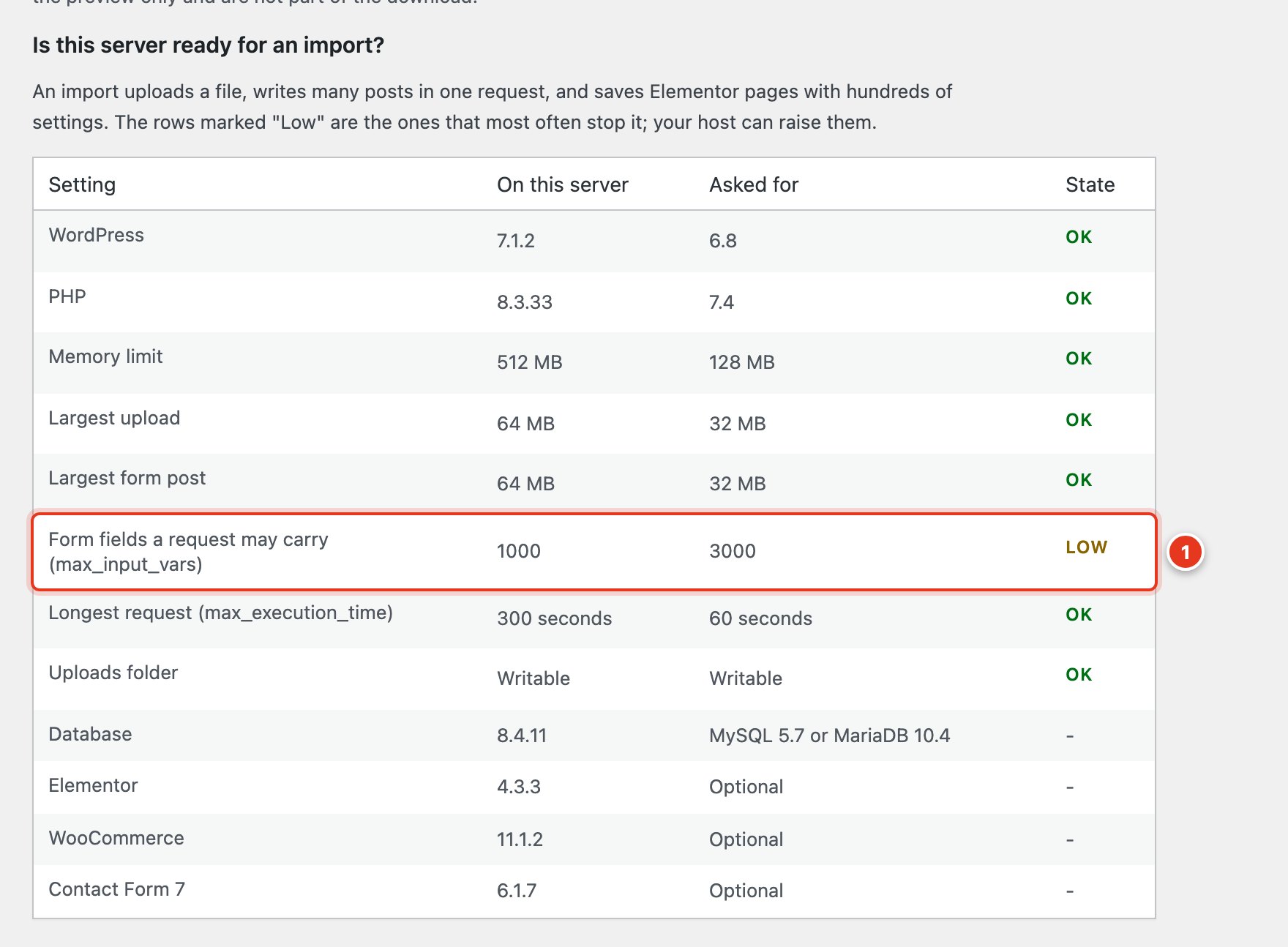
- A row marked Low can stop the import. Ask your host to raise it before you import.
Many hosts let you raise these values yourself, in the hosting control panel under "PHP settings" or "PHP options". If yours does not, send your host this message:
Please set these PHP values for my site:
memory_limit = 256M
upload_max_filesize = 64M
post_max_size = 64M
max_input_vars = 3000
max_execution_time = 300
Pick a demo#
The Demos tab shows the three demos. Preview opens the live demo in a new tab. Import takes you to the import screen.
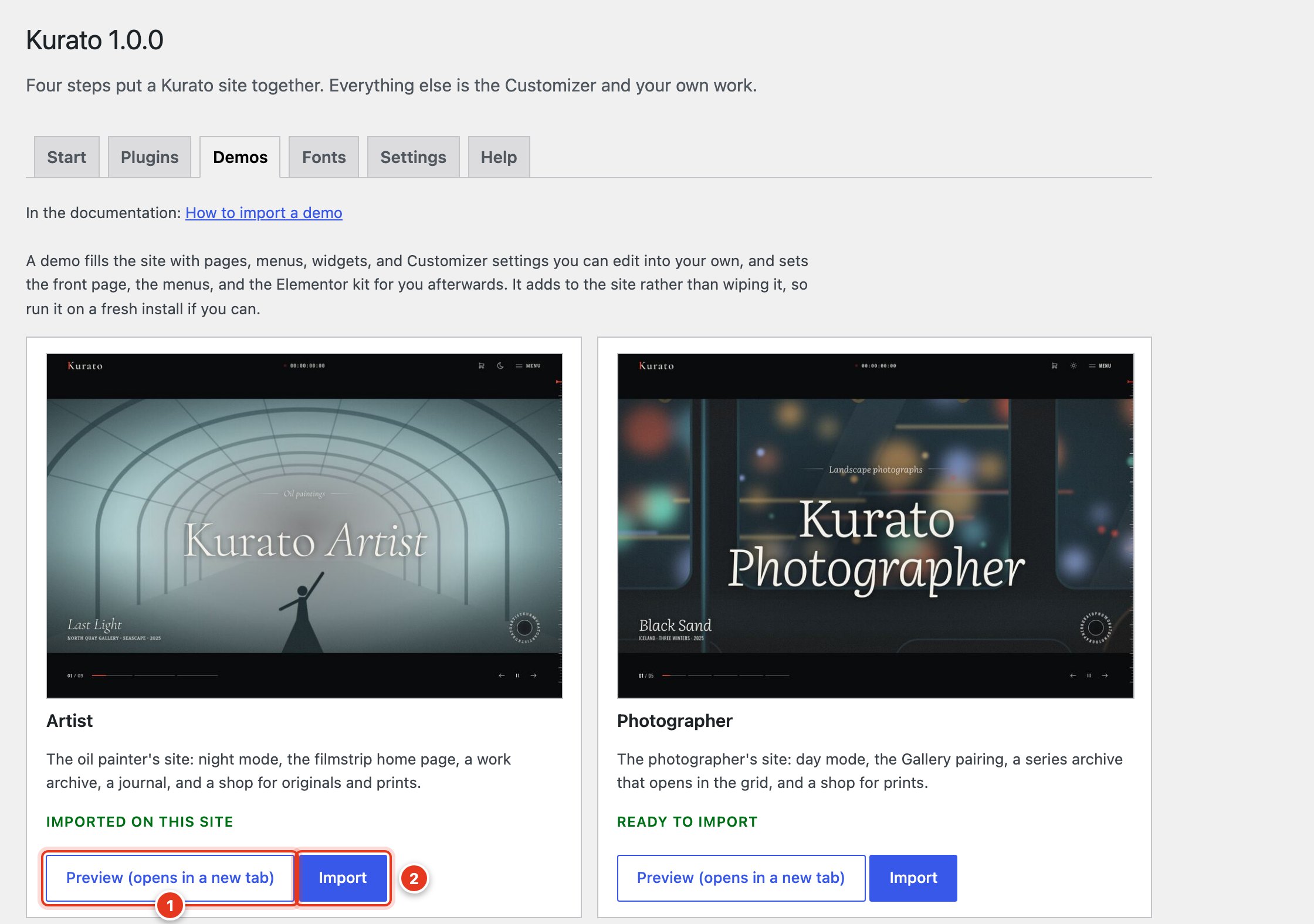
- Preview opens the live demo.
- Import opens the import screen for this demo.
| Demo | What it sets up |
|---|---|
| Artist | An oil painter's site. Night mode, the bundled fonts, a filmstrip home page, a work archive as a contact sheet, a journal, and a shop for originals and prints. |
| Photographer | A landscape photographer's site. Day mode, the Gallery font pairing, a series archive in a grid, and a shop for prints. |
| Motion | A motion and 3D designer's site. Night mode, the Studio font pairing, a work archive in a grid, a services page, and a shop for digital products. |
Run the import#
- Go to Appearance > Import Demo Data.
- Move the pointer over the demo you want and click Import Demo.
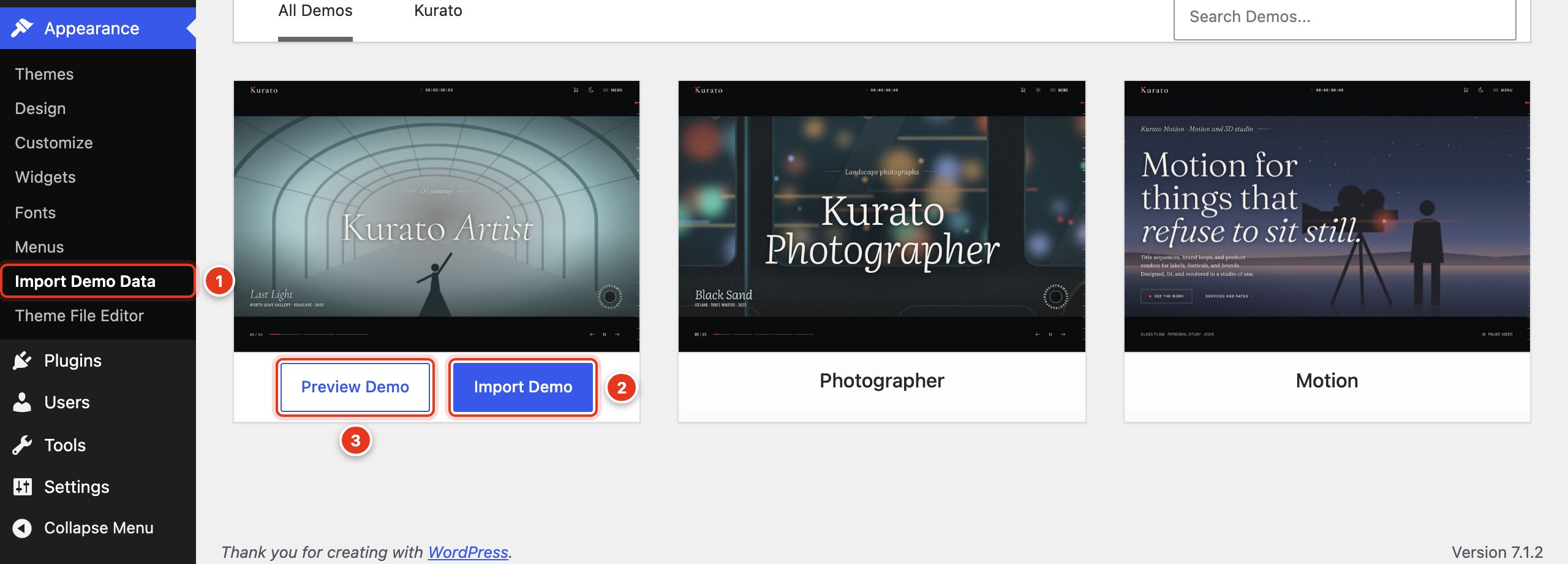
- Appearance > Import Demo Data.
- Import Demo starts the import of this demo.
- Preview Demo opens the live demo.
- Read the note about what the import adds and changes.
- One Click Demo Import also lists plugins from its own partners. Kurato does not need them. Leave them switched off.
- Click Continue & Import. Keep the tab open until the import says it is done. It can take several minutes on a slow server.
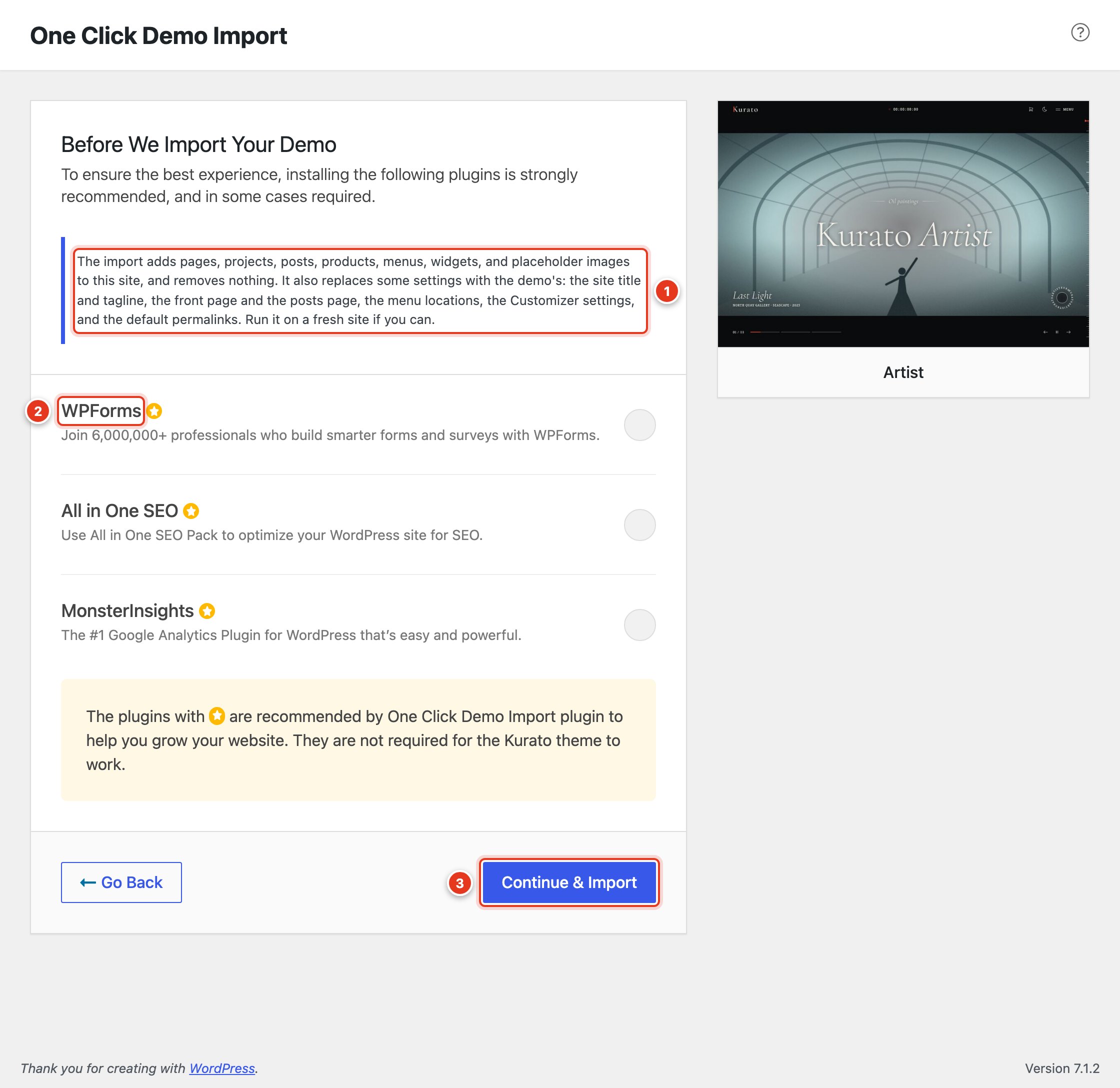
- Kurato's note: what the import adds and which settings it replaces.
- Partner plugins of One Click Demo Import. They are not needed.
- Click Continue & Import.
Pick your home page#
Each demo comes with 11 home pages: the main one and 10 more, each with a different opening and order of sections. The import sets Home as your front page. To use another one:
- Go to Settings > Reading.
- In Homepage, choose a page whose name starts with Home:, for example Home: Exhibition.
- Click Save Changes.
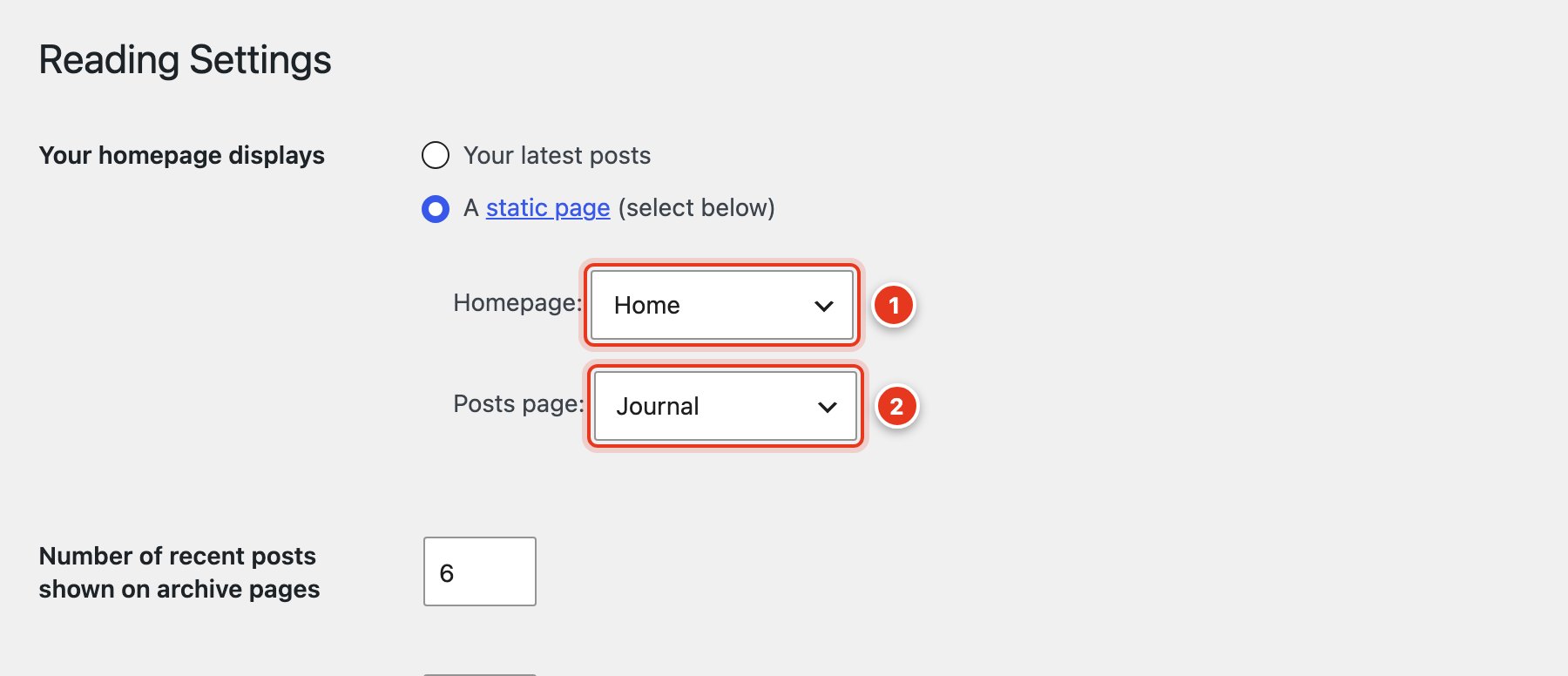
- Homepage: the page visitors see first.
- Posts page: the journal. The import sets it to Journal.
To see all 11 home pages, open the live demo, then open the menu and the Home item. You can delete the home pages you do not use under Pages.
What the import brings#
| Artist | Photographer | Motion | |
|---|---|---|---|
| Pages | 15 | 15 | 16 |
| Projects | 12 | 9 | 10 |
| Posts | 6 | 6 | 6 |
| Products | 9 | 9 | 8 |
| Contact form | 1 | 1 | 1 |
The import also sets the menus, the widgets, the Customizer settings, the front page and the posts page, the project archive address, the shop pages, and the Elementor kit. Every page is built from Kurato sections, so you can change any of them in Elementor.
Placeholder images#
The images you get are placeholders: crops of the theme's own illustrated stills, in the right shape for each place. Replace them with your own work in Media, or open each page and pick new images. The photographs, paintings, and films on the live demos are licensed for the preview only, so they are not part of the download.
Importing a second demo#
We do not recommend it. A second import adds to the first: pages get a "-2" at the end of their address, the menus merge, and the widgets stack. To switch demos, start from a fresh WordPress install, or remove the first demo's content by hand first.
If the import stops#
- It stops halfway or shows an error. A server limit was reached. Check the table in Check your server, raise the values marked Low, and run the import again. One Click Demo Import skips content that already exists.
- Pages are empty. Elementor was not active during the import. Activate Elementor, delete the imported pages, and import again.
- No shop. WooCommerce was not active during the import. Activate it and import again.
- The menu is missing. Go to Appearance > Menus > Manage Locations and set Primary to the menu named Primary. See Menus.
More fixes are in Troubleshooting.
Kurato 1.0.0 documentation, updated 2026-10-03. Online at kurato.jawad.work/docs/.