
Building your site
Your projects
A project is one piece of your work: a film, a photo series, a painting, a campaign. Projects have their own menu, their own fields, and their own archive page.
Add a project#
- Go to Projects > Add New Project.
- Write the title and the text, and add sections as on any page. See Pages and sections.
- In the sidebar, set the Still (the featured image) and fill in Project details.
- In the sidebar, pick a Type, a Client, a Year, and a Role.
- Click Publish.
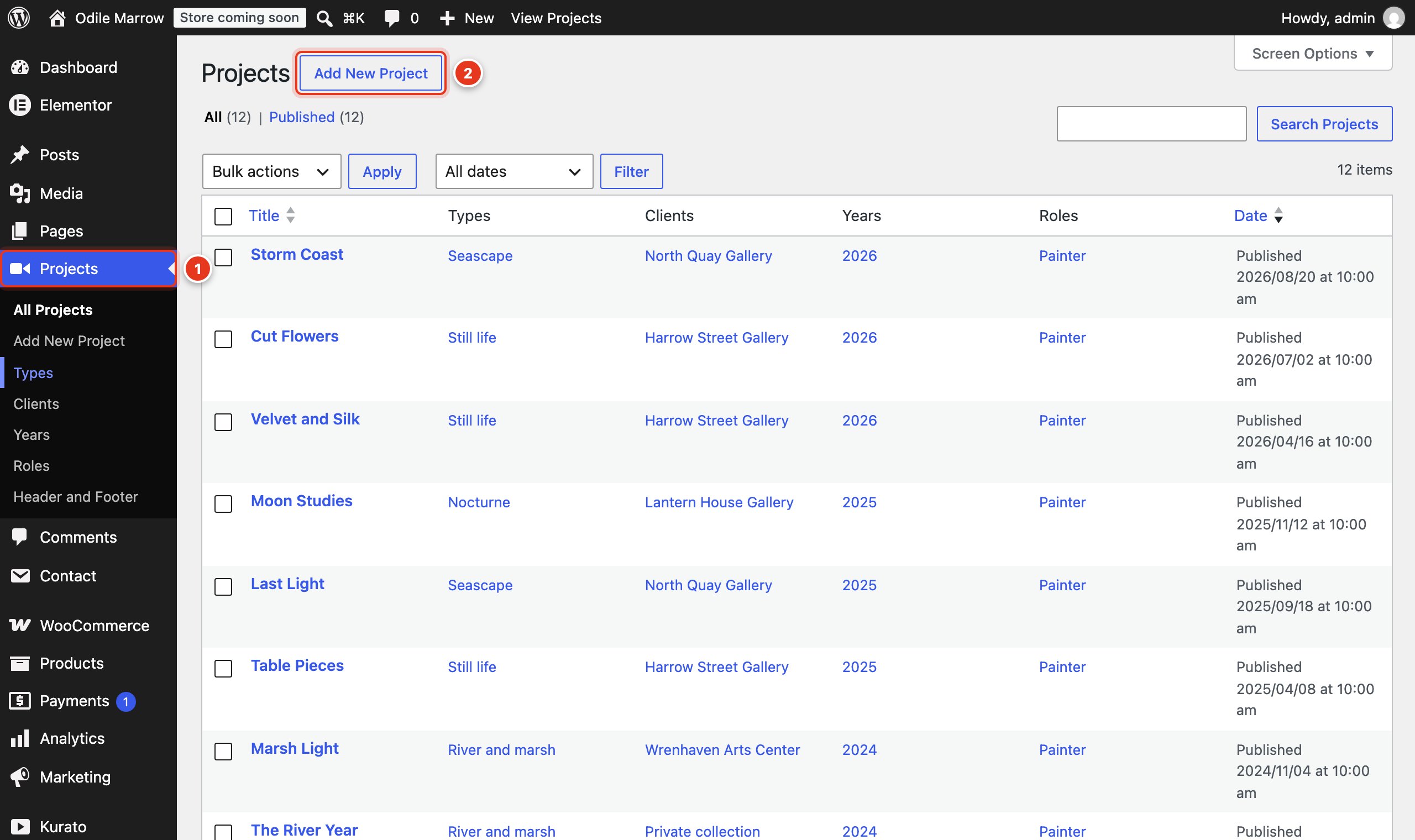
- The Projects menu. Its sub-menu holds Types, Clients, Years, Roles, and Header and Footer.
- Add New Project.
Project details#
When you edit a project in the block editor, open the Project tab of the sidebar and scroll to Project details.
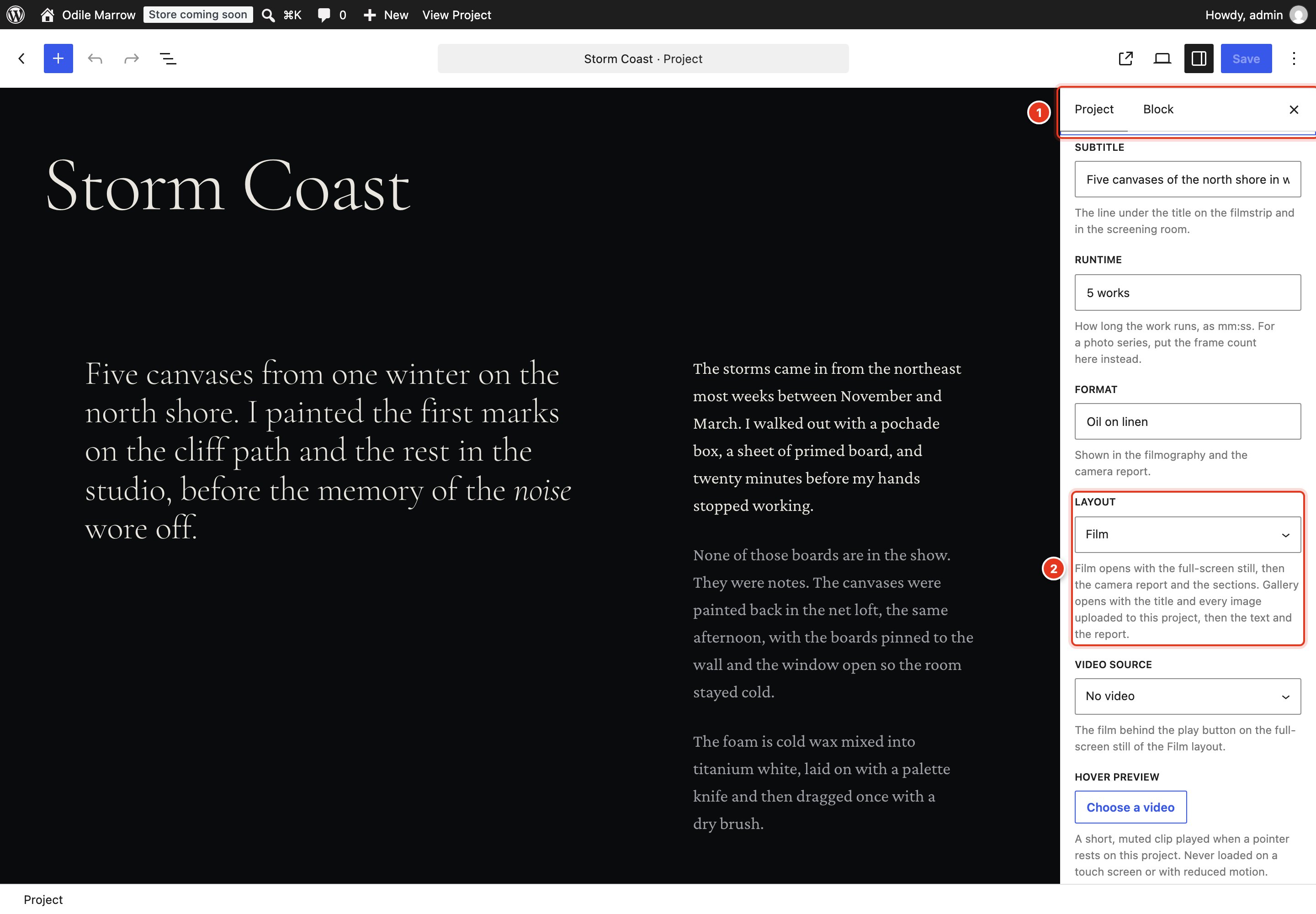
- The Project tab of the sidebar.
- Layout: Film or Gallery.
| Field | What it is for |
|---|---|
| Subtitle | The line under the title on the filmstrip and in the screening room. |
| Runtime | How long the work runs, written as mm:ss, for example 02:45. For a photo series, write the number of frames instead. |
| Format | Shown in the credits table and the camera report, for example "Oil on linen" or "16mm". |
| Layout | Film opens with a full-screen still, then the camera report and your sections. Gallery opens with the title and a large gallery of every image uploaded to this project, then the text and the report. |
| Video source | No video, Vimeo, YouTube, or a file from the media library. The film plays behind the play button on the full-screen still of the Film layout. |
| Video address | The Vimeo or YouTube address. Other addresses are removed when you save. |
| Video file | A video from the media library, when the source is a file. |
| Hover preview | A short, silent clip that plays when a pointer rests on the project in lists. It never loads on a touch screen or when the visitor asks for reduced motion. |
| Focal point | Two values from 0 to 100. They decide which part of the still stays in view when a narrow screen crops it. |
| Report rows | The camera report: rows of a label and a value. Use any labels you want, for example "Camera" and "Print size", or "Director" and "Stock". |
The classic editor shows the same fields in a box under the text. There, write report rows one per line as Label | Value.
Images for the Gallery layout#
The Gallery layout shows the still first, then every image uploaded to the project. To add images, open the project and upload them from the project's own screen, for example with an Image block, or with Add media in the classic editor. Images uploaded this way are "attached" to the project. In Media, the list view shows each image's Uploaded to column, and you can attach an existing image to a project there.
Types, clients, years, and roles#
These four lists sort your projects. Each project can have several of each.
| List | What it holds | Used by |
|---|---|---|
| Types | What kind of work it is: brand film, campaign, portrait series. | The archive filters. |
| Clients | Who the work was made for. | The client column, the client lanes, and the credits table. |
| Years | The year the work belongs to. Left empty, it is taken from the publish date. | The year column and filters. |
| Roles | What you did: director, editor, photographer. | The role column of the credits table. |
Each type, client, year, and role also has its own page that lists its projects. The description you write for a type shows at the top of its page.
The order of projects#
Sections and widgets that list projects can sort them in "scene order". Set the order in the sidebar of each project, under Scene Number: lower numbers come first.
The archive address#
The archive is the page that lists all projects. By default its address is /work/, and each project's address starts with it, for example /work/storm-coast/.
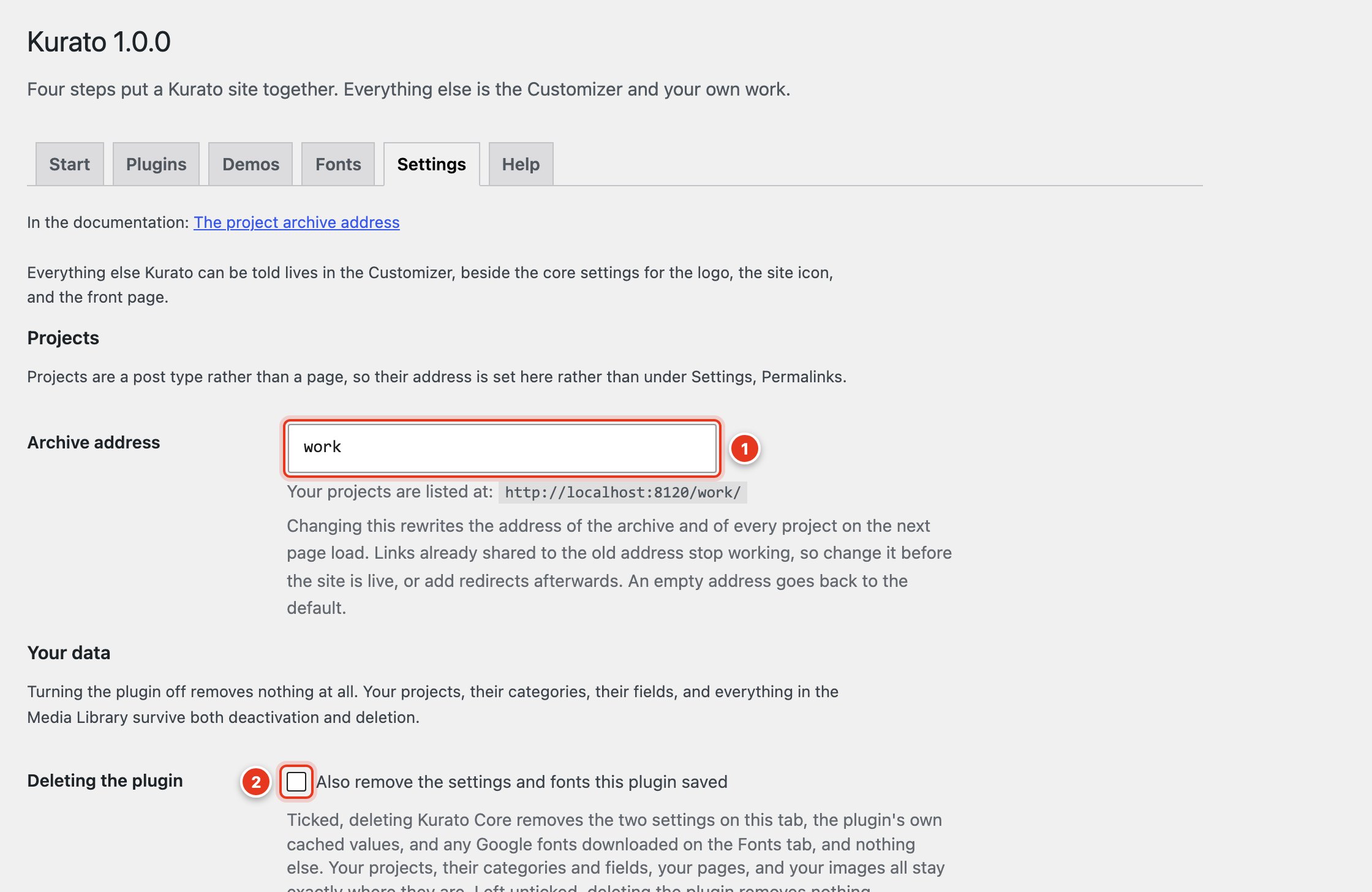
- Archive address: for example
work,series, orfilms. - Deleting the plugin: see Removing Kurato Core.
Changing the address changes the address of every project. Links you shared before stop working. If your site is already live, add redirects after the change. If a page uses the same address, the archive wins and that page can no longer be opened.
The look of the archive (layouts, columns, filters, and paging) is in the Customizer. See Projects settings.
Password-protected projects#
To share a project with one client only, set Visibility to Password protected in the sidebar. Visitors see the title and a password field until they enter the password.
Kurato 1.0.0 documentation, updated 2026-10-03. Online at kurato.jawad.work/docs/.