
Building your site
The shop
Kurato styles every WooCommerce page, including the block cart and checkout. Kurato Core adds three extras: a cart drawer, quick view, and a wishlist.
Set up the shop#
- Install and activate WooCommerce. See Install the plugins.
- Make sure WooCommerce has its Shop, Cart, Checkout, and My account pages. The demo import sets them. On an empty site, WooCommerce makes them when it starts.
- Set up payments, shipping, and taxes in WooCommerce > Settings. WooCommerce's own guides explain these at woocommerce.com/documentation.
- Switch the shop to Live. See Open your shop.
What visitors see#
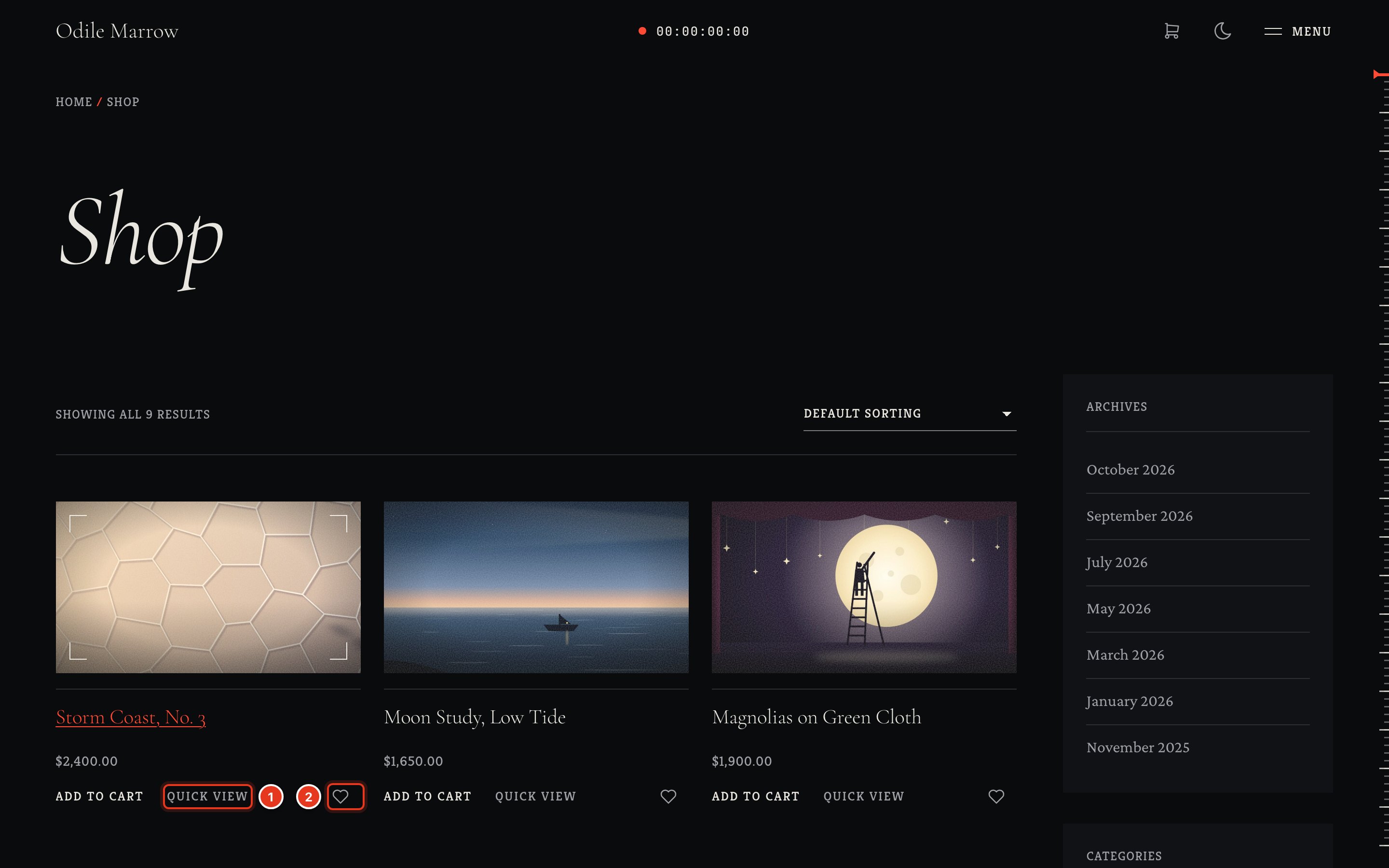
- Quick view opens the product in a window over the list.
- The heart adds the product to the wishlist.
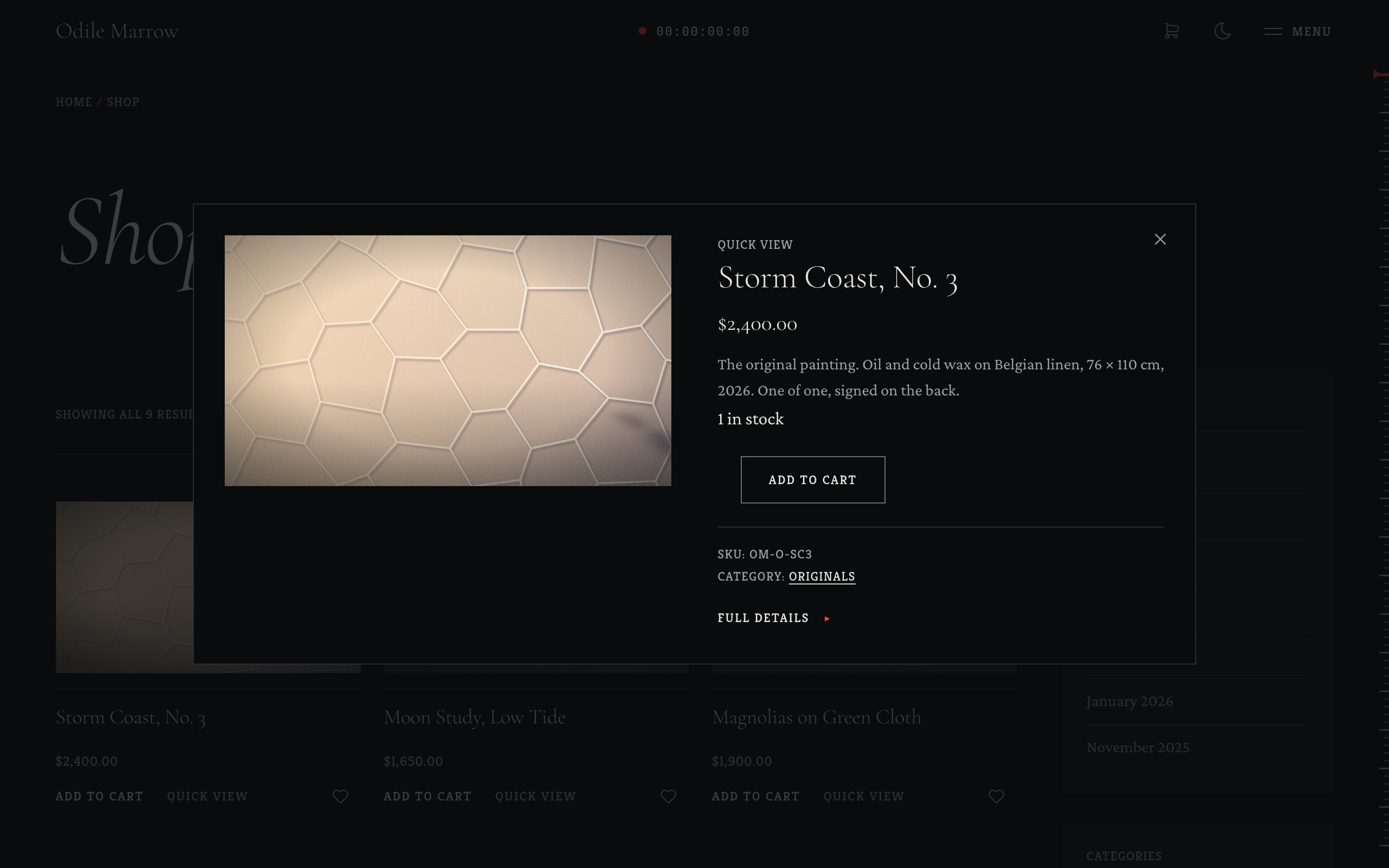
Quick view shows the image, title, price, short description, and the add to cart button for simple products. Variable products show a link to choose options on the product page. Full details opens the product page.
The cart drawer#
When a visitor adds a product, the cart slides in from the side instead of loading the cart page. The visitor can change quantities there. The cart button in the header opens it too.
The wishlist#
Visitors save products with the heart. The list is kept in a cookie for 30 days for guests and in the account for logged-in customers. A guest's list moves into their account when they log in. The wishlist page is the shop page with ?kurato-wishlist=1 at the end of the address, so you do not need to make a page. Add it to a menu as a Custom Link, for example https://example.com/shop/?kurato-wishlist=1.
The product page#
The product page shows a gallery with zoom and a full-screen view, and a purchase panel for simple and variable products: the options, the quantity, the price of each, the stock, and the running total.
Shop settings#
Go to Appearance > Customize > Kurato > Shop. You can turn off the cart drawer, quick view, or the wishlist, set two to four products in a row, and place the shop sidebar. See Shop settings. When all three extras are off, their scripts do not load.
The shop sidebar is the Shop sidebar widget area. As a filter panel, it slides in over the products from a button above them. Good widgets for it are product categories, the price filter, and product search.
Product images#
- Upload product images at least 1280 pixels wide.
- Cards in the shop are cropped to 16:9, so keep the product near the middle.
- Gallery thumbnails are square.
Products on other pages#
The Products section shows a grid of products on any page, drawn with the shop's own cards. See Shop and journal sections.
Kurato 1.0.0 documentation, updated 2026-10-03. Online at kurato.jawad.work/docs/.